
If you have an old desktop gathering dust or a shiny new mini-PC, you are sitting on a potential goldmine. You shouldn't just install Windows or standard Linux on it. Instead, you should be looking at virtualization.
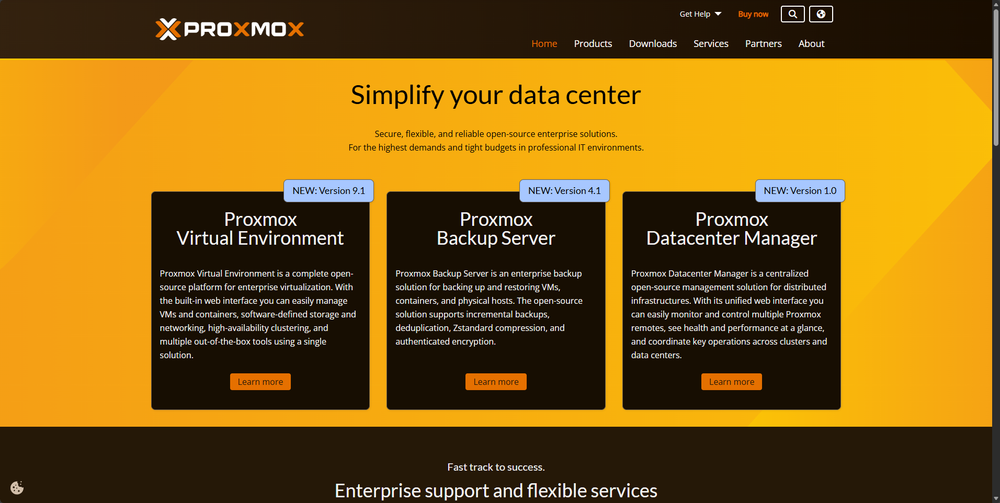
Enter Proxmox Virtual Environment (VE).
Think of Proxmox as the "operating system for your operating systems." It allows you to run multiple servers—like a media center (Plex/Jellyfin), a home assistant, a game server, and a website—simultaneously on a single piece of hardware.
In this guide, I’ll walk you through exactly how to install Proxmox VE and get your first Virtual Machine (VM) running.
What You’ll Need (Prerequisites)
Before we dive in, let’s make sure you have the hardware. You don’t need a supercomputer, but you do need the basics:
- A 64-bit Processor: Intel or AMD with virtualization support (Intel VT-x or AMD-V enabled in BIOS).
- RAM: At least 4GB is required, but I highly recommend 8GB or 16GB if you plan to run multiple services.
- Storage: An SSD is best for the operating system to keep things snappy.
- A USB Drive: At least 4GB (for the installer).
Step 1: Prepare the Installation Media
First, we need to grab the software.
- Head over to the official Proxmox Downloads page.
- Select Proxmox Virtual Environment > ISO Images.
- Download the latest version (currently Proxmox VE 8.x).
Next, you need to "burn" this ISO file onto your USB stick. I recommend using BalenaEtcher or Rufus. Just select the Proxmox ISO, select your USB drive, and hit Flash.
Step 2: The Installation Process
Plug your USB drive into your future server and boot it up. You may need to press F11, F12, or Del to enter your BIOS/Boot Menu and select the USB drive.
1. The Welcome Screen
Once it boots, you will see a menu. Select "Install Proxmox VE (Graphical)" and hit Enter. You’ll see some code scrolling; this is normal.
2. End User License Agreement (EULA)
Read (or skim) the terms and click "I agree."
3. Target Hard Disk
This is where Proxmox will live. Select your main drive (preferably your SSD).
- Warning: This will wipe everything on that drive!
4. Location and Time Zone
Set your Country, Time Zone, and Keyboard Layout. This is important so your server logs have the correct timestamps.
5. Password and Email
Set a strong password for the root user. You will need this to log in later, so don’t forget it! You also need to enter an email address (it’s used for system alerts).
6. Network Configuration
This is the most critical part.
- Hostname: Give your server a name (e.g.,
pve.localornode1.proxmox.moe). - IP Address: Set a Static IP. This ensures your server always stays at the same address (e.g.,
192.168.31.100). - Gateway/DNS: Usually your router's IP (e.g.,
192.168.31.1).
Click Next, review your summary, and hit Install. The system will now install the OS and automatically reboot. Remove your USB drive when the screen goes black.
Step 3: Accessing the Web Interface
Once the server reboots, you will see a black screen with white text telling you to browse to a specific URL.
Go to another computer on your network, open your web browser, and type in the address shown on your server screen. It will look like this:
https://192.168.31.100:8006
Don't panic if you see a security warning! Because you haven't installed a commercial SSL certificate yet, your browser will flag it as "Not Private." This is safe. Click Advanced > Proceed to... (unsafe).
You will be greeted by the login screen.
- User: root
- Password: (The one you created in Step 2)
Step 4: Creating Your First Virtual Machine
Now for the fun part. Let's create a Virtual Machine. For this example, let's say we want to install Ubuntu Server.
1. Upload an ISO
Before you create the VM, Proxmox needs an installer disc image (ISO).
- On the left menu, click on your node (e.g.,
pve). - Click on the storage named local (pve).
- Select ISO Images > Upload.
- Select your Ubuntu ISO file and upload it.
2. The "Create VM" Wizard
Click the blue Create VM button in the top right corner.
- General: Give your VM a name (e.g.,
Ubuntu-Server). Note the VM ID (usually starts at 100). - OS: Select the ISO image you just uploaded in the "ISO image" field.
- System: You can usually leave the defaults here (Graphics card, Machine type).
- Disks: Choose how much hard drive space you want to give this VM (e.g., 32GB).
- CPU: Assign cores. If you have a 4-core CPU, giving the VM 2 cores is a safe bet.
- Memory: Assign RAM. 2048 MiB (2GB) is standard for a Linux server.
- Network: Leave the bridge as
vmbr0(this connects the VM to your home network).
3. Launch!
Click Finish. You will see your new VM appear in the left menu. Right-click it, select Start, and then click Console.
A window will pop up showing the screen of your virtual machine. You can now install Ubuntu exactly as if you were sitting in front of a physical computer!
Summary
Congratulations! You have successfully built a Type-1 Hypervisor. You no longer need to buy a new computer every time you want to try a new project. You can just spin up a new VM, test it, and delete it if you don't like it—all without messing up your main setup.